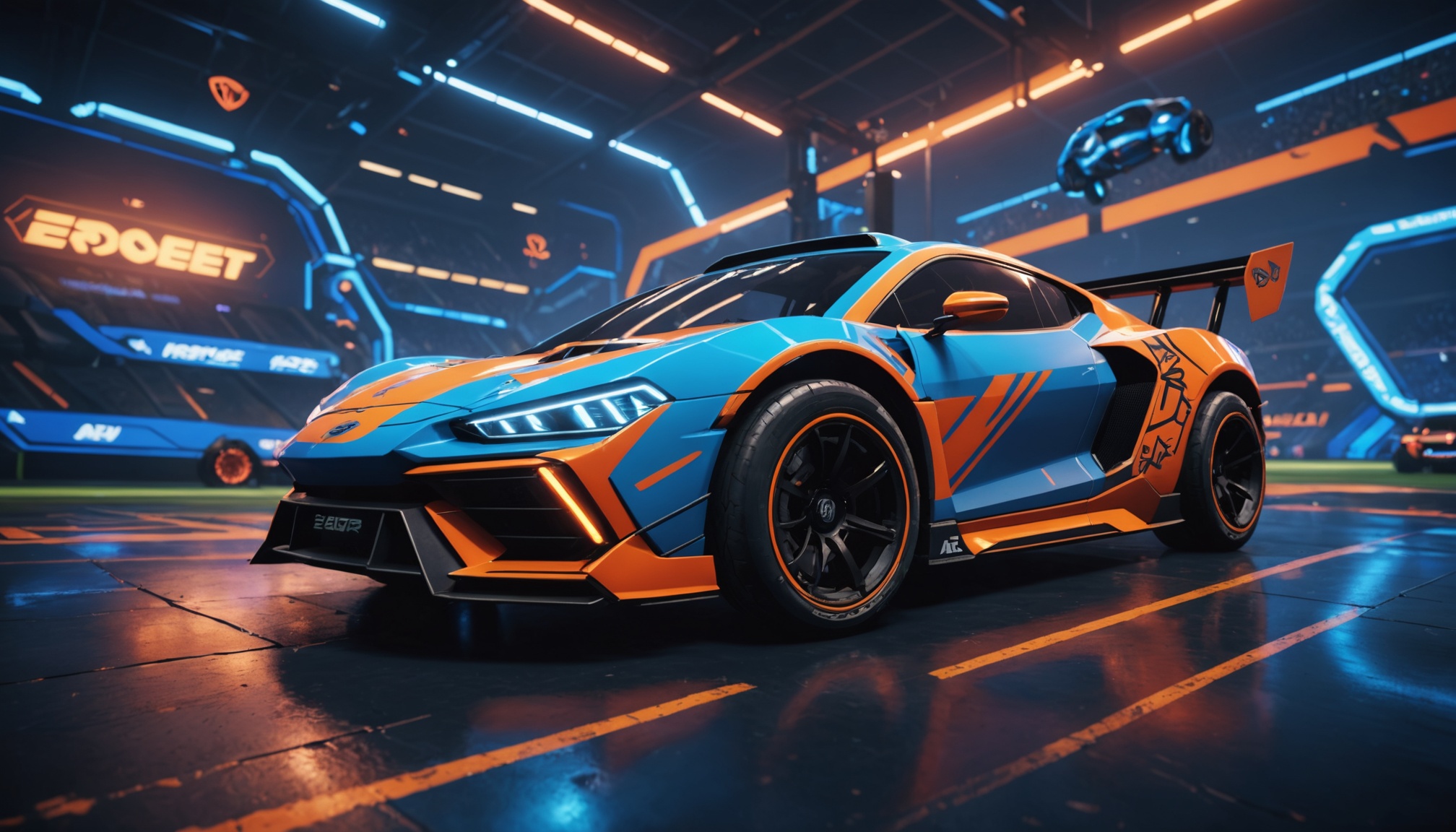
A fresh look on your Octane, a unique Fennec, a distinctly painted Dominus — custom car skins in Rocket League remain a popular request in 2026, but the installation path changed completely after BakkesMod and AlphaConsole stopped working. This guide covers the current method: safe, free, reversible.
What "Custom Car Skin" Actually Means in Rocket League
In Rocket League, a "skin" can refer to several different cosmetic layers:
- Custom decal — replaces the painted pattern on a car body. Most common request. (See our decals guide.)
- Custom wheels — visual swap on the wheels.
- Custom boost — replaces the boost flame and trail.
- Custom body texture — modifies the underlying paint of the car body itself, beyond the decal layer.
"Custom car skin" is most often shorthand for combining a decal, wheels, and boost into a coordinated look. RLPeak's V1 covers decals, wheels, and boosts; full body-texture replacement is on the roadmap.
Why the Old Methods Stopped Working
Tutorials published before the April 2026 anti-cheat update are no longer applicable. The legacy stack — BakkesMod plus AlphaConsole or similar plugins — depended on injecting into the running Rocket League process, which is no longer viable. Forks claiming to restore that workflow carry meaningful security risk and will not function on the current version.
Step-by-Step: Custom Car Skin Setup
1. Decide your look
Pick a car body first (Octane, Fennec, Dominus, Breakout, etc.) and a colour scheme. Skins look best when decal, wheels, and boost colour are coordinated. Have a reference image or palette in mind.
2. Install RLPeak
Grab the latest signed installer from GitHub releases. Run it with Rocket League closed. The first launch detects your installation; for multi-store setups, point it at the copy you want to mod.
3. Apply a custom decal
Open the Items panel, choose your car body, browse the decal catalog, and apply. RLPeak backs up the original file before swapping.
4. Apply custom wheels
Switch to the Wheels tab. Wheels are universal across bodies, so you can pair any wheel with any car. Apply the set you want — Zomba alternates, custom Drac textures, animated wheels, etc.
5. Apply a custom boost
Boosts in RLPeak include trail and flame variants. Pick one that complements the colour scheme. Apply.
6. Launch Rocket League and equip
Boot the game. EAC starts up clean — RLPeak didn't touch the process. Go into the Garage, equip the matching items (decal, wheels, boost), and your custom skin is live.
Reverting to Default
Open RLPeak, hit Reset on each item (or "Reset all"). Originals come back from backup. Alternatively, run "verify game files" in Epic / Steam — the launcher will redownload anything modified.
Popular Custom Skin Combos in 2026
- Octane — most decal options because it's the most-played body. Easy to find community packs.
- Fennec — paired with Drac wheels and a slim trail boost is a community favourite.
- Dominus — looks great with painted decals + chunky wheels (Spinners, OEMs).
- Breakout — niche but iconic; harder to find decal packs but RLPeak's import workflow lets you bring your own.
Will Other Players See My Custom Skin?
In practice, only you see it. Rocket League sends each client the cosmetic IDs a player has equipped — your custom decal renders locally from your modified file, but other players' clients render the standard version. This is true of every client-side cosmetic mod, with or without injection. A custom look visible to all players requires an officially licensed item, which is a Psyonix-side decision.
Is This Safe?
RLPeak operates entirely outside the running game process. EAC monitors process integrity, not file content on disk. To date, no RLPeak user has reported a ban tied to using the app. We cover the full ban-risk technical breakdown in our safety article.